
Restoring a database from a backup
Restore a PostgreSQL, NoVPS Document or MySQL database from a backup — as the snapshot was taken, or to any moment in time for PostgreSQL and NoVPS Document
Every backup can be restored into a new database with the same engine, version and node configuration. The original database is not touched: you can compare the two, copy back what you need, or switch your application to the restored copy and delete the old one.
| Engine | Backup snapshot | Point in time |
|---|---|---|
| PostgreSQL | ✓ | ✓ |
| NoVPS Document | ✓ | ✓ |
| MySQL | ✓ | — |
| NoVPS Cache | no backups | no backups |
Open the restore dialog
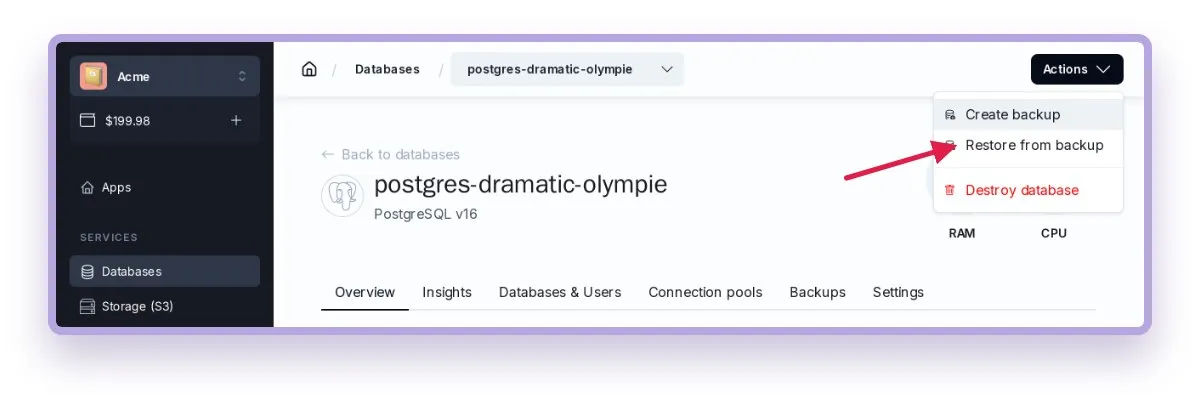
Open the database and choose Actions → Restore from backup in the top bar. The menu is available on every tab of the database.
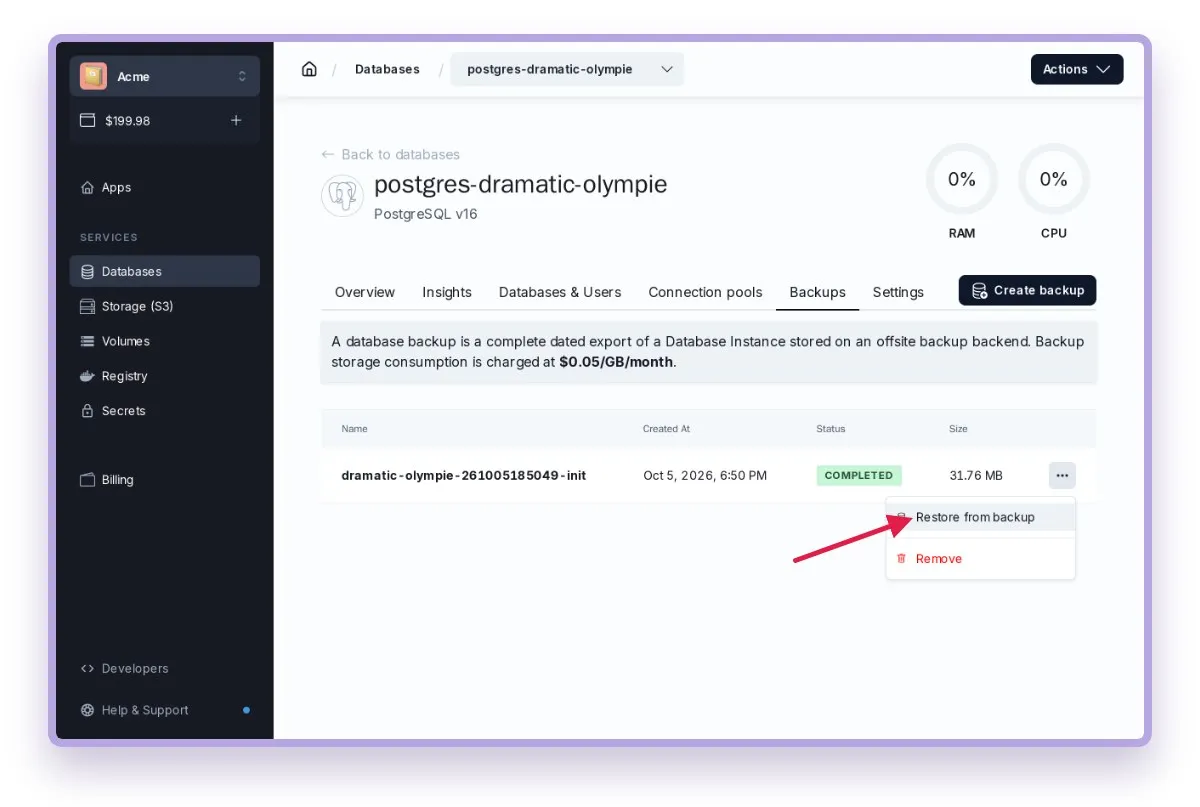
You can also start from a particular backup: open the Backups tab, click ⋯ next to it and choose Restore from backup. Only completed backups can be restored.
Restore a backup snapshot
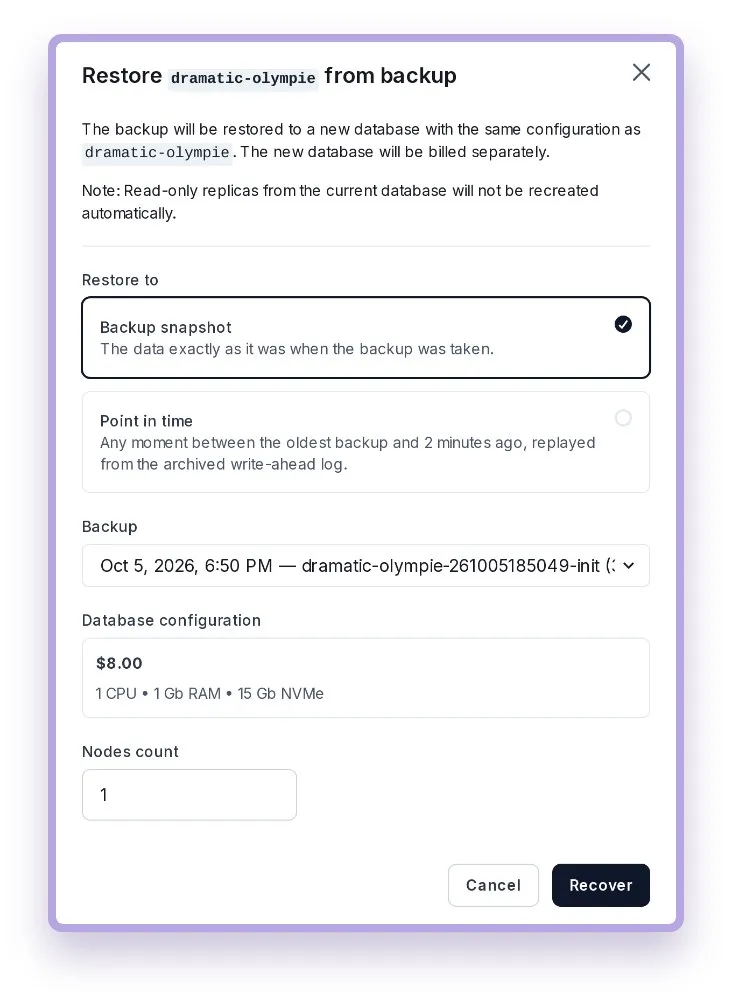
Backup snapshot restores the data exactly as it was when the backup was taken. Pick the backup in the list — the newest one is selected by default — and click Recover.
Restore to a point in time
PostgreSQL and NoVPS Document continuously archive their write-ahead log next to the backups, so a database can be brought back to any moment between the end of the oldest backup and 2 minutes ago — not only to the moment a backup was taken. This is what you need after an accidental DELETE, a broken migration or a bad deploy: pick a time just before it happened.
Choose Point in time and enter the date and time. The dialog picks the right backup by itself — the newest one that finished before the selected moment — and replays every change made after it up to that moment.
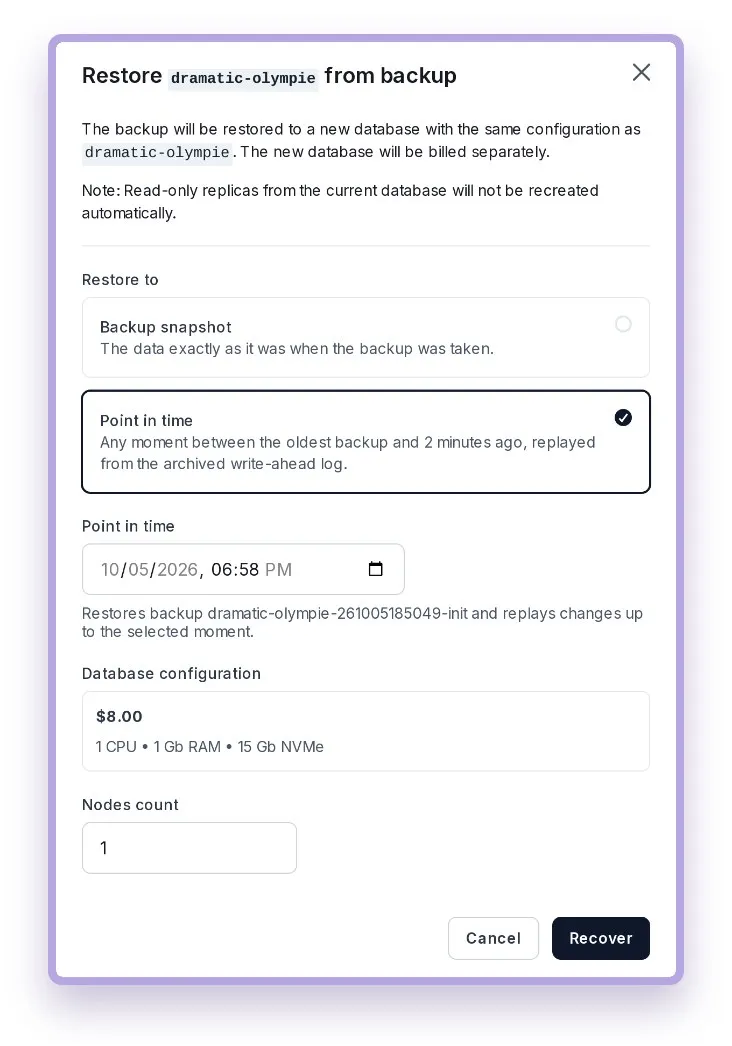
- The time is entered in your local time zone and with minute precision:
18:58means 18:58:00. - Everything committed before the selected moment is in the restored database; nothing committed after it is.
For example, if a DELETE removed most of the orders table at 18:58:26, restoring to 18:58 gives you a database with all the orders still in it.
After you click Recover
You are taken to the database list, where the new database appears with the Restoring status. Restoring usually takes a few minutes; large databases take longer. The database is ready when the status disappears.
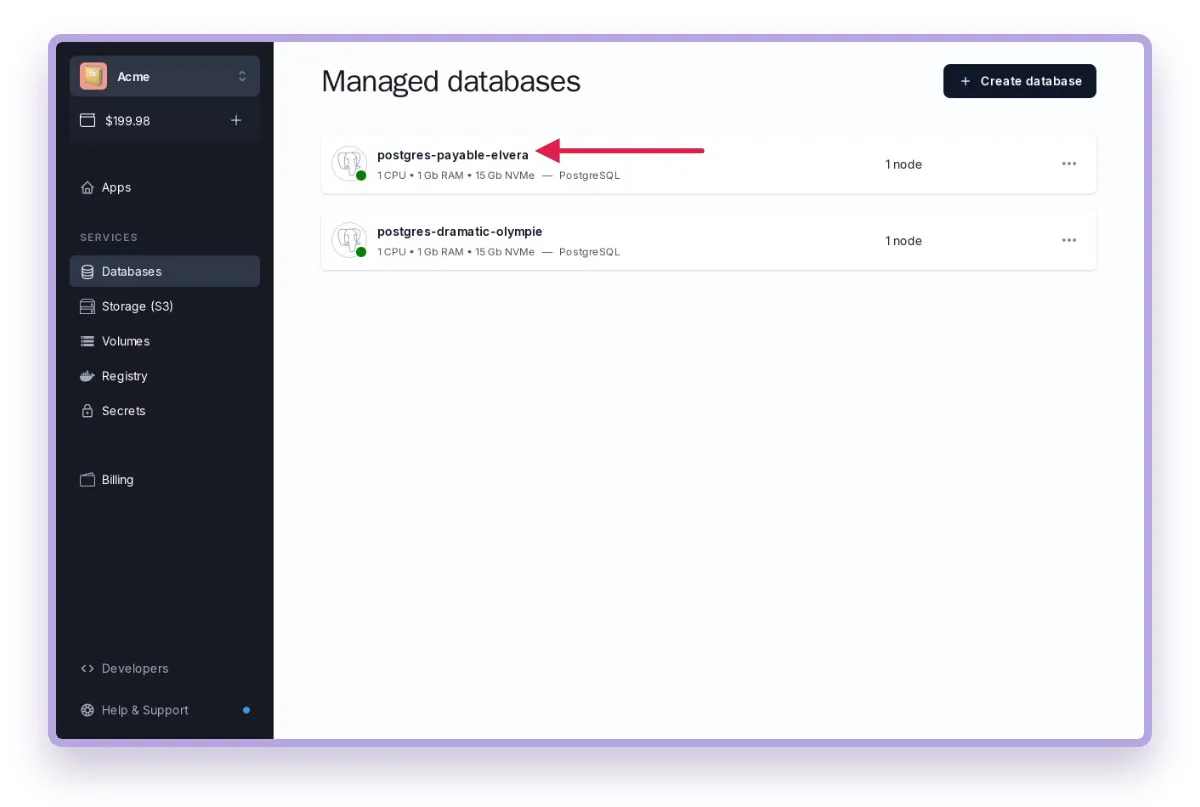
The restored database:
- has a new name and a new host, so update the connection settings of your applications if you are switching them over;
- keeps the same default user and password as the original;
- has the additional databases and users that existed at the restored moment;
- does not get read-only replicas or connection pools — add them again if you need them;
- is billed separately from the original database, at the price shown in the dialog. Delete the database you no longer need to stop paying for it.